AllMyNotes Organizer manual › Topic: How to Search All Notes and Folders
Instructions for AllMyNotes Organizer 5.03 for Windows.
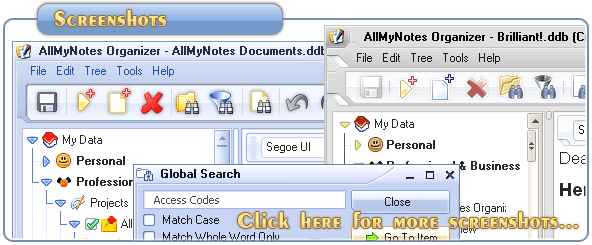
Global Search finds matching text across your AllMyNotes Organizer database as you type. Use it when you remember a name, phrase, number, or other detail but not the Note or Folder where it is stored.
Search all Notes and Folders
1. Press F5, or choose Tools > Global Search.
2. Type the text you want to find. Matching Notes and Folders appear in real time.
3. Select a result and choose Go To to open it. Choose Filter to show only matching Notes and Folders in the navigation tree; press F4 to turn that filter off.
You can specify a case sensitive search by checking the Case Sensitive checkbox. When unchecked, both "Spirit" and "spirit" will be found, regardless of how the item was originally entered.
If you want to search for whole words, check Whole Words Only.
For a Boolean search, select Boolean Search. Prefix a required word with + and an excluded word with -. For example, +Sun +Green -Moon requires “Sun” and “Green” and excludes results containing “Moon”.
Use searchable text tags
AllMyNotes does not require a separate tag database. Type a short tag directly in any Note using a consistent square-bracket form, such as project-alpha, waiting, client-smith, or tax-2026. Later, search for the complete bracketed tag with Global Search to find every related Note, even when those Notes live in different Folders.
Square brackets make the tag easy to recognize and prevent a search for waiting from matching every ordinary use of the word “waiting.” A Note can contain several tags. Use Folders for its main location and text tags for categories that cross the Folder tree-for example, one client, status, subject, or year shared by many projects. Because the tags are ordinary text, they remain readable and portable in exports.
Search attachments and use filters
Select Search in objects to include Alarm descriptions and schedules, attachment file names, and the contents of attachments recognized as text. Binary files are skipped, and up to the first 5 MB of attachment text is searched. This option is available in the Deluxe edition.
You can type filters directly in the search field and combine them with ordinary keywords:
date:>2024-01-01finds items modified after that date.modified:last30daysfinds items modified during the past 30 days.size:>1mbfinds larger items.in:Projectslimits the search to items whose Folder path contains that text;path:is an equivalent prefix.
In the Deluxe edition, select a result to see an inline excerpt with the matching text highlighted. For a more detailed guide, see Search attachments, filters, and result previews.
Search Troubleshooting
If the results seem too broad or unexpected, clear Boolean Search and try again. In Boolean mode, prefix every required term with + and every excluded term with -; terms without a prefix are optional and therefore may broaden the result set.
# # #
Feel free to contact us with questions, ideas, or comments.
📚 Versions of this topic
This article has different instructions for different AllMyNotes Organizer releases. Open the version archive or choose a version: